Settings
Client Settings for Windows
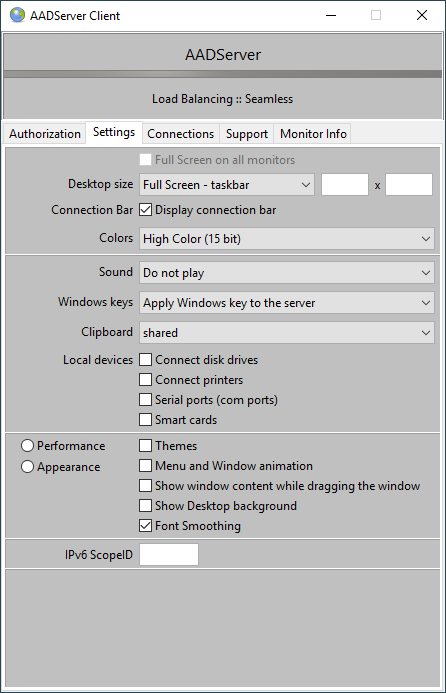
Desktop Size
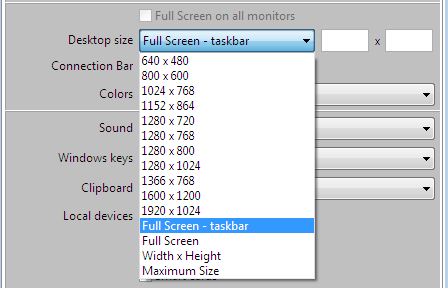
You can select the size of the Remote Desktop.
- The option "Full Screen" will show the Remote Desktop indeed Full Screen, on the current monitor of the client.
- If the Client has 2 or more monitors, the Remote Desktop will be shown Full Screen on the current monitor onto which the AADS Client is running.
- The option "Full Screen - taskbar" will make sure that the taskbar of the Client will remain visible while working with the Remote Desktop.
- The option "Maximum Size" is similar to "Full Screen - taskbar"; however, the Client will show a "Window border", "Title" and "minimize/restore" buttons.
Full screen on all monitors
AADS Client for Windows is "monitor aware". When the AADS Client detects that the Client PC has 2 or more monitors, it behaves as follows:
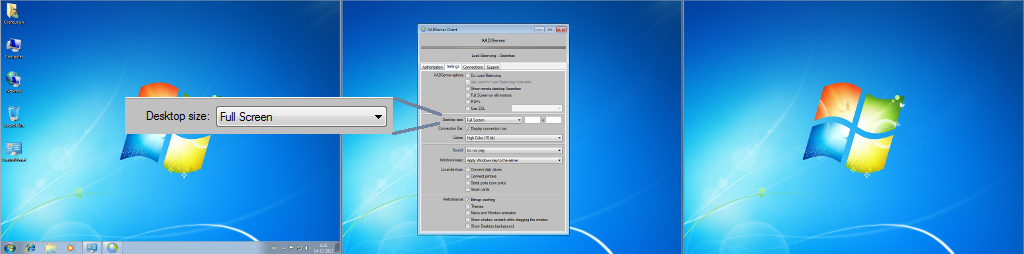
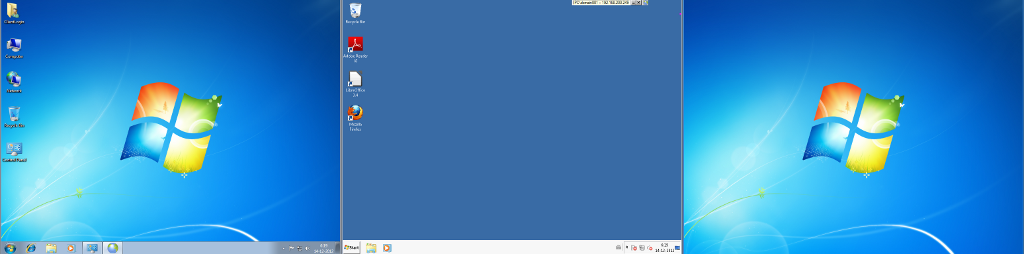
- The option Full screen implies that the AADS Client will be Full screen on the monitor it is currently running. Example:
- If you want the AADS Client to show a Full screen Remote Desktop session on monitor 3, move the AADS Windows to monitor 3 before you click on "Connect", and the Remote Desktop will be shown Full screen on monitor 3.
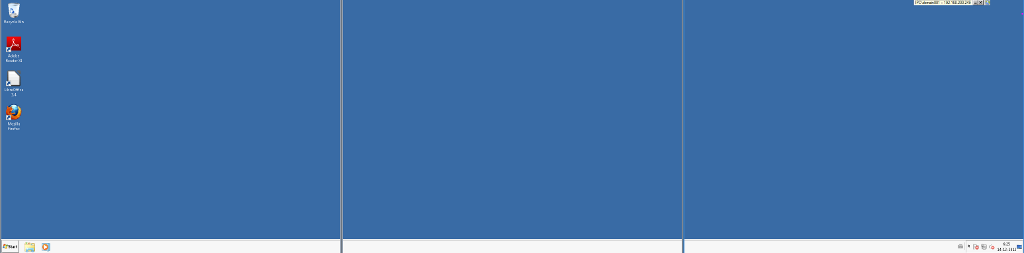
- If you want the AADS Client to be Full screen on all monitors, select the option "Full screen on all monitors".
Example: Client will be Full screen on Monitor 3
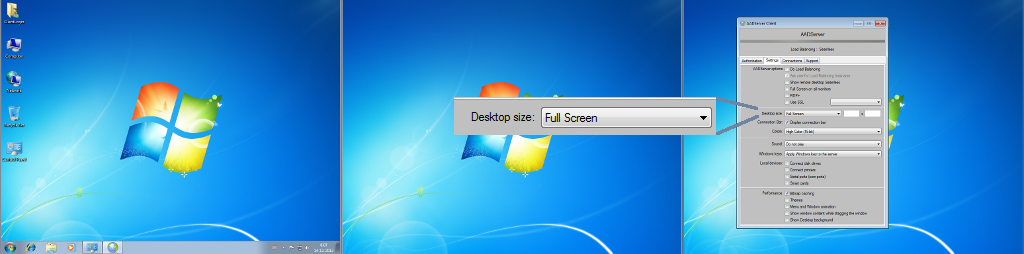
The Remote Desktop in this example will be shown Full screen on Monitor 3, because prior to clicking on the Connect button, the AADS Client is being shown on Monitor 3, so it will do the Remote Desktop on Monitor 3:
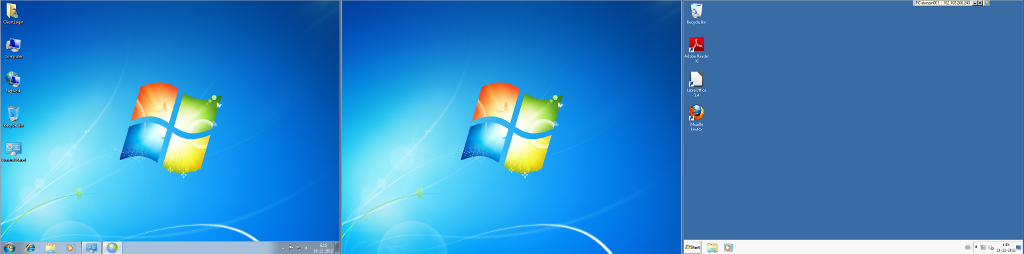
Example: Client will be Full screen on Monitor 2
The Remote Desktop in this example will be shown Full screen on Monitor 2, because prior to clicking on the Connect button, the AADS Client is being shown on Monitor 2, so it will do the Remote Desktop on Monitor 2:
Example: Full screen on all monitors
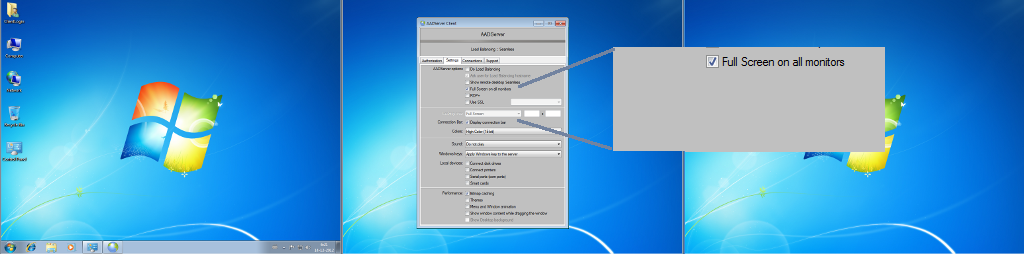
The Remote Desktop in this example will be shown Full screen on all Monitors:
Full screen limitations Windows
There are technical limitations in the ability of Windows Client PCs to do Full Screen. It depends on the version of the Microsoft Remote Desktop Client software as it is installed on the Client PC.
- First it is attempted by the AADS Client software to show the Remote Desktop as big as possible.
- If it is not possible to show the Remote Desktop as big as possible, it is attempted to show the Remote Desktop with a width of 1600 px.
- If it is not possible to show the Remote Desktop with a width of 1600 px, it is attempted to show the Remote Desktop with a width of 1280 px.
When you notice that the maximum width of the Remote Desktop Window is limited to 1600 px or 1280 px, you can attempt the following:
- Upgrade the Remote Desktop software on the Client PC with the latest Remote Desktop Client software from Microsoft.
Connection Bar
Show, or show not the connection bar in the Remote Desktop Session.
IPv6 Scope ID
Described here .
Remaining settings
The remaining settings are similar to the settings in the Default RDP Client software from Microsoft.
|
© 2012-2024 AADS WorldWide. Terminal Server | Application Server | Remote Desktop solutions | Firewall
|

|

|

|
|
 Settings