 DockDesktop


|
|
|
|
|
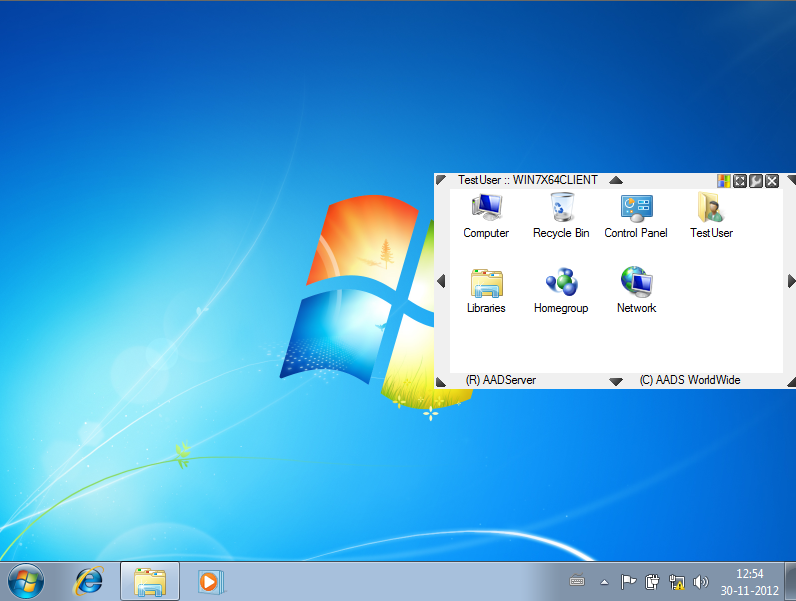
In the folder Program Files\AADServer the tool aadDockDesktop is installed. Purpose of aadDockDesktop is to show the desktop icons at a different location on the screen then as default done by Windows:
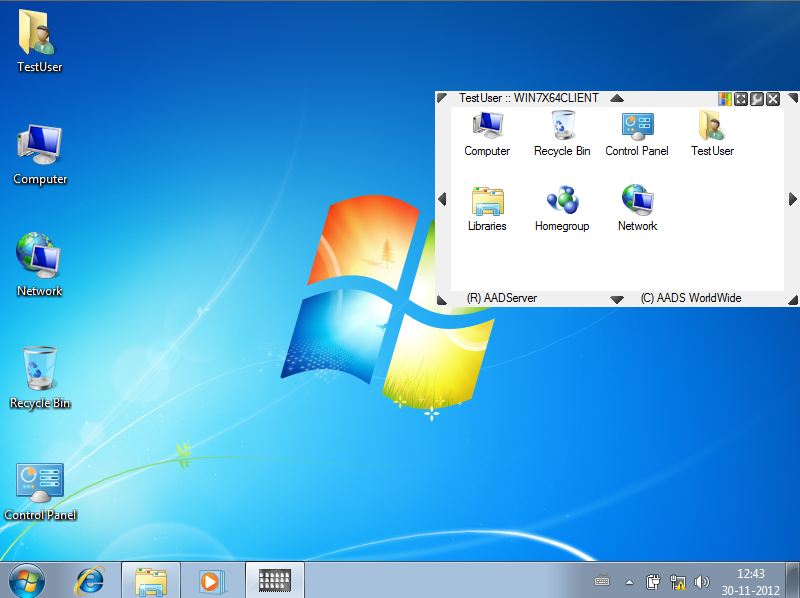
If you click on the “no arrow / button” -button, the small arrows / buttons will disappear. Doing so will prevent that the user does accidentally resize or move aadDockDesktop:
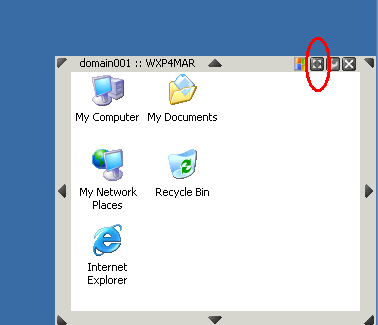
By clicking on the close-button, aadDockDesktop will terminate:
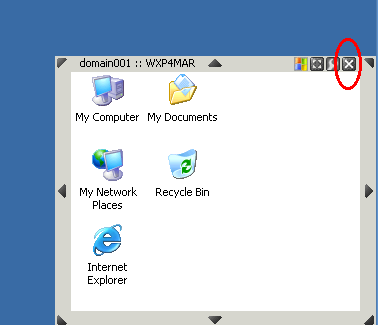
The config-button shows the configuration options:
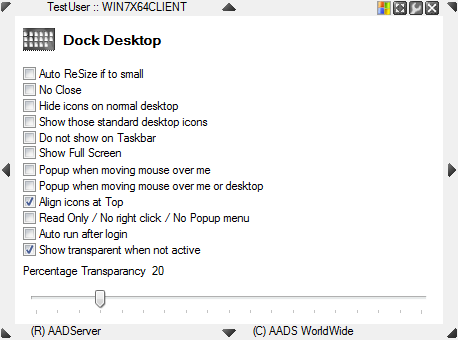
In case aadDockDesktop is to small, such that not all icons are shown, such that there is a vertical and / or horizontal scrollbar visible, aadDockDesktop will enlarge itself until all icons are visible.
The close button will disappear and it will not be possible to terminate aadDockDesktop.
Also the option Do not show on Taskbar will be checked, and disabled.
When un-checked the default Windows desktop does also show the usual desktop icons
When checked, the default Windows desktop does not show any icon. Example:
when checked, those standard desktop icons like My Computer, Recycle Bin, etc, are shown. When un-checked, only the icons in the personal desktop of the user are shown.
The personal desktop is a setting / location that can be changed by the administrator. Default the personal desktop is located in %USERPROFILE%\Desktop.
If the user has no icons in %USERPROFILE%\Desktop, aadDockDesktop will be empty.
The example here above has the option "Show those standard desktop icons" checked.
if checked, the taskbar will not show an item for aadDockDesktop.
If un-checked, the Taskbar will show an item for aadDockDesktop:
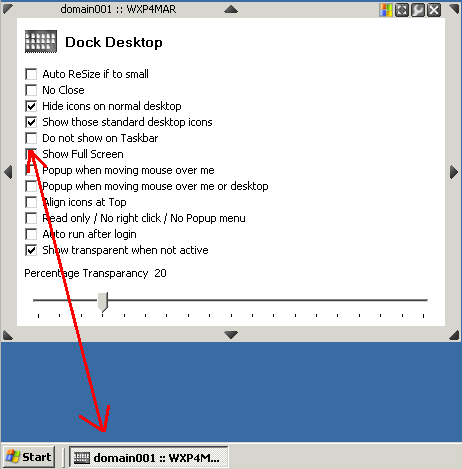
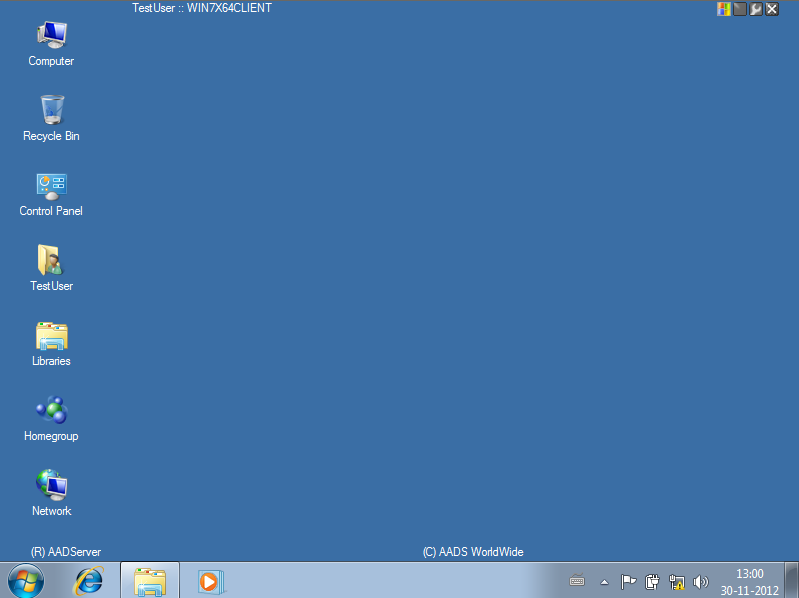
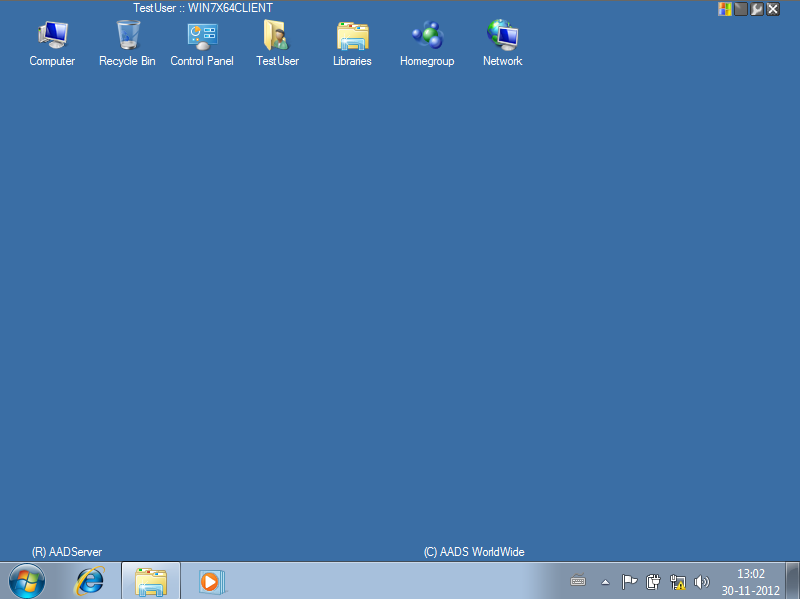
DockDesktop can position itself Full Screen. When Show Full Screen is combined with the option Align icons at Top, unchecked, then aadDockDesktop mimics the default Windows desktop:
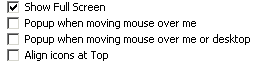
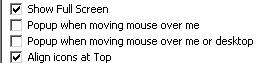
When one of these options is checked, aadDockDesktop will show itself “on top” when the mouse is moved over it.
When checked, DockDesktop will create an entry for itself in the RUN-key in the registry / profile of the user, such that it will be started every time after a login.
When unchecked, the entry in the RUN-key in the registry / profile of the user will be deleted.
Note: when aadDockDesktop is started using AADS Application Control, then this setting is not required.
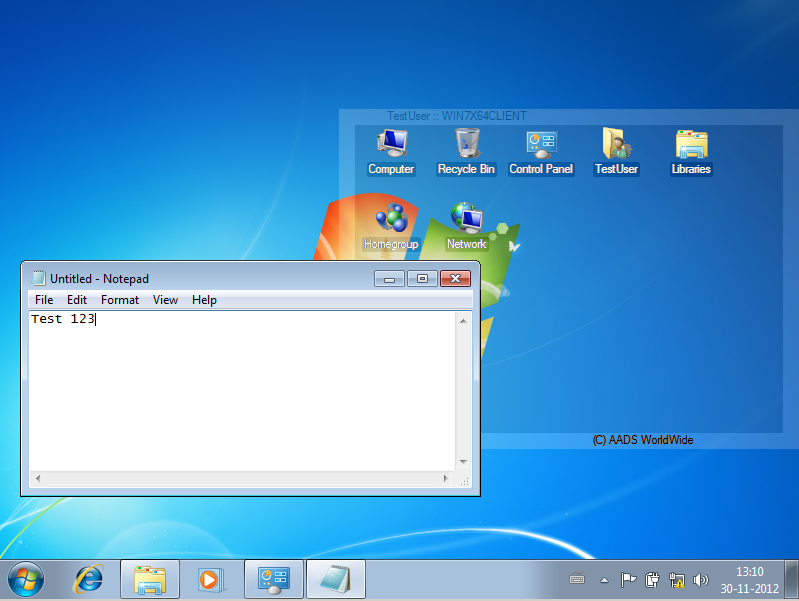
aadDockDesktop is shown transparent onto the desktop:
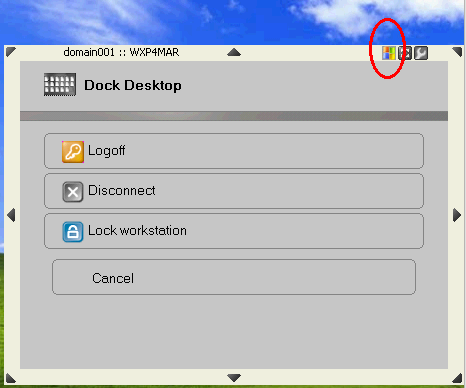
The small Windows-button shows a session menu:
aadDockDesktop maintains an INI-file for the user in “Application Data”-folder beneath the personal folder of the user. Which folder that exactly is, can vary and is determined by the Operating System, or by specific settings done by the Administrator.
The INI-file is called aadDockDesktop.ini.
The various config-settings are saved in this INI-file. All possible settings in an INI-file:
| Left=340 Top=0 Height=340 Width=460 Dock position=right-top Auto size=no Do not close=yes Hide icons on MS desktop=yes Do show standard Desktop icons=yes Hide from taskbar=yes Popup when moving mouse over me=no Popup when moving mouse over me or desktop=no Do Transparancy if not Active=yes Align icons at Top=yes Percentage Transparancy=20 Show Full Screen=no Read only. No right click. No popup menu=yes Autostart for this user after login=no Do Resize and Dock=yes Path= |
Path is the only setting in the INI-File that can not be set using the Configuration-panel of aadDockDesktop.
In case Path is empty, aadDockDesktop will show the default Global Desktop as offered by Windows, or the personal desktop of the user in case the option “Show those standard desktop icons” is not checked.
When the setting Path has a value, then aadDockDesktop does expect to find icons in this folder. Examples:
Path=\\server\groups\sales\AppGroup1
Path=c:\icongroups\sales\AppGroup1
It is expected that the folder AppGroup1 contains icons / shortcuts which will be shown by aadDockDesktop.
Note: possible the second example, where Path points towards drive C:, is a better example, because Windows might show the user a warning when attempting to access an icon / link in a folder on a network drive.
Normally Path is never used, but an Administrator might use it in special cases where aadDockDesktop needs to show a special set of icons for the user.
It is not required to start DockDesktop with any command-line parameter. However, if done so, 1 or 2 parameters are possible. All parameters should be am INI-file.
The first command-line parameter / INI-file will be the user INI-file. It will replace the default INI-file for the user as described above here.
The second command-line parameter / INI-file will be the system INI-file.
DockDesktop will open the second, system INI-file with only read-access. Whatever config-setting is set in the system INI-file will overrule the config-setting in the user INI-file.
Example:
aadDockDesktop “%userprofile%\aadDockDesktop.ini” “c:\globalsettings\aadDockDesktop.ini”
The 1th INI-file will be in the user-folder.
The 2th INI-file will be a global INI-file with some settings that do apply for every user.
Content of c:\globalsettings\aadDockDesktop.ini
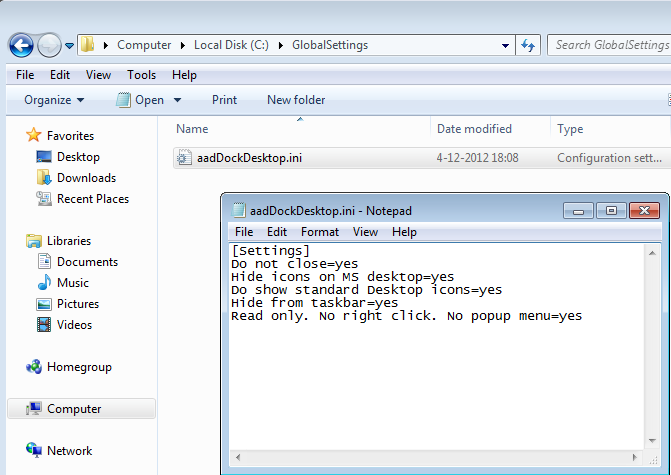
There are only 5 settings in the system INI-file. These 5 settings will overrule the 5 settings in the user INI-file. All other settings in the user INI-file can be changed by the user.
The result of this example is as follows:
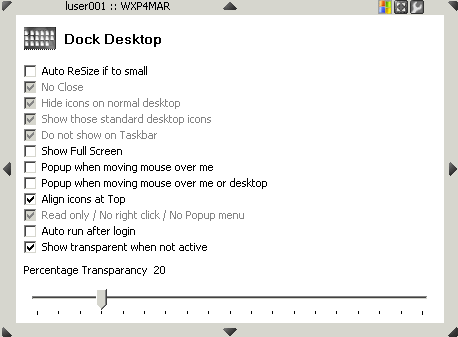
The settings which are placed in the system INI-file are all applied, and the user can not change those settings.
Only the settings which are not placed in the system INI-file can be changed by the user.
|
© 2012-2024 AADS WorldWide. Terminal Server | Application Server | Remote Desktop solutions | Firewall |
|
|
|