 Users and Groups, Sets and Applications


|
|
|
|
|
Application Control is done in 3 steps:
When Optimize or Default Applications and Sets is used, a pre-defined configuration with Applications and Sets will be applied.
It might be convenient to start with either Optimize or Default Applications and Sets , because it will pre-fill in a lot of Applications and Sets:

This example shows the result of Optimize or Default Applications and Sets :
From here, the Administrator can change and edit the assigned Applications and Sets.

The button "Read" loads all settings. If some changes are done, but those changes are not wanted, not needed and not previously saved with the "Save" button,
the "Read" button will load the settings again.
The button "Save" saves all settings.

Using the "un-do" and "re-do" buttons it is possible to un-do or re-do changes while editing.
The "Layout" buttons changes the Layout of the screen:
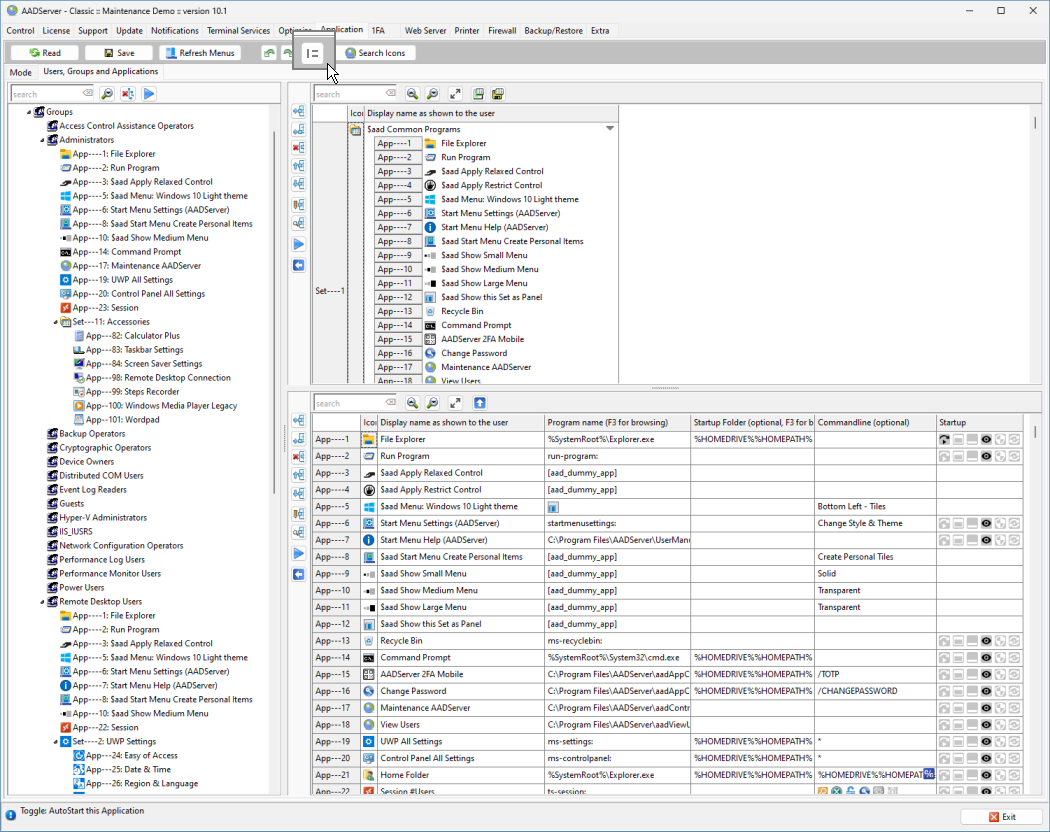
Either the Applications are besides the Sets, or below the Sets.
Both Sets and Applications can have a custom Icon assigned. In order to facilitate the selection of customs icons, AADS creates and maintains a folder on the Terminal Server in which it places a copy of all icons it finds on the Terminal Server:
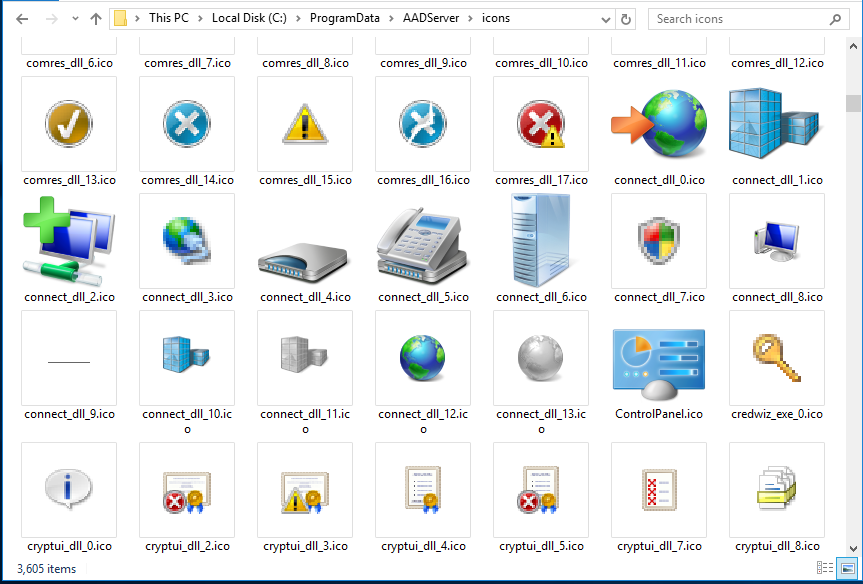
AADServer will automatically scan for Icons once a week.
If it is needed to update this icon-folder now, because some Applications has been installed and those icons from those Applications should also appear in the Icon-folder, use the button "Search Icons".
|
© 2012-2024 AADS WorldWide. Terminal Server | Application Server | Remote Desktop solutions | Firewall |
|
|
|